

Laptop Stickers for Dell
So you’ve got a Dell. Maybe it’s a sleek XPS 15 that cost you a small fortune. Maybe it’s a workhorse Inspiron that’s survived three jobs and two apartments. Or maybe it’s a Latitude that your company handed you on day one and you’ve been quietly making it yours ever since.
Whatever the model, you’re staring at that lid and thinking: can I sticker this thing without ruining it?
The honest answer is yes, but Dell laptops have some specific surface characteristics that make them worth thinking about before you start peeling. Unlike the glossy aluminum of a MacBook, many Dell models feature matte or soft-touch finishes that behave a little differently with adhesives. Get it right and your stickered Dell looks like a developer’s natural habitat. Get it wrong and you might be dealing with adhesive residue or a scuffed finish that you really didn’t want.
This guide covers everything: which Dell surfaces work best with stickers, sizing for the most popular Dell models, which sticker types to use and avoid, how to apply and remove safely, and the best developer sticker picks that look great on a Dell lid. We’ll also tie this into the broader ultimate guide to laptop stickers for programmers for context on the bigger picture.
Let’s get into it.
Understanding Dell Laptop Surfaces Before You Sticker
Why Dell Surfaces Are Different From Other Laptops
If you’ve ever put a sticker on a MacBook and then tried the same technique on a Dell, you’ve probably noticed a difference in how it feels. That’s not your imagination. Dell uses several distinct lid materials across its product lines, and each one has different properties when it comes to sticker adhesion and removal.
Understanding your specific Dell’s surface type is the single most important step before you commit anything to that lid. Skip this and you’re flying blind over expensive hardware.
The Four Main Dell Lid Surface Types
Soft-touch matte coating – This is the most common finish on consumer Dell laptops, including most Inspiron models. It has a slightly rubberized, velvety feel that looks clean and resists fingerprints. The tradeoff: it’s the most sensitive surface for sticker application. Aggressive adhesives can bond too strongly to the coating, and removal, especially of low-quality stickers, can drag the finish or leave residue that’s difficult to clean without damaging the surface further.
Hard plastic matte – Found on older Inspiron models and many budget Dell machines. More forgiving than soft-touch coating. Standard vinyl stickers apply and remove reasonably well, though residue is still possible with cheap stickers. Generally a safe surface for quality vinyl.
Aluminum (anodized) – Present on the XPS line and some premium Latitude models. This is the most sticker-friendly Dell surface. Behaves similarly to MacBook aluminum, stickers apply cleanly, bonds well, and quality vinyl stickers remove without leaving marks. This is the surface you want if you’re planning a heavily stickered laptop.
Carbon fiber weave – Found on select XPS and Precision models. This textured surface can be trickier because the texture means the sticker doesn’t bond evenly across the entire surface, potentially causing edge lifting over time. Stickers still work here but benefit from extra firm edge pressing during application.
Which Dell Models Are Best for Laptop Stickers?
Dell XPS – The Gold Standard for Sticker-Friendly Dells
The Dell XPS line, particularly the XPS 13, XPS 15, and XPS 17, is the most sticker-friendly range Dell makes. The aluminum or carbon fiber lids provide excellent surfaces for quality vinyl stickers, and the premium build quality means the finish is durable enough to handle both application and eventual removal without drama.
If you’re a developer with an XPS, you’ve got the best possible Dell canvas to work with. The XPS 15 lid in particular, roughly 13.5″ × 9.5″, gives you excellent real estate for a well-planned sticker layout.
Recommended sticker approach for Dell XPS: Standard die-cut vinyl stickers of any quality tier. Full color, holographic, matte, and glossy finishes all work well. You can go bold with coverage knowing the aluminum surface can handle it.
Dell Inspiron – The Most Common Dell, Requires More Care
The Inspiron line is Dell’s bread-and-butter consumer range and probably the most common Dell in the wild. The soft-touch matte coating on most Inspiron models (14, 15, and 16 series especially) is what you need to treat with respect.
The finish looks beautiful out of the box, smooth, premium-feeling, fingerprint-resistant. But it’s also somewhat delicate when it comes to adhesives. Stickers work fine here if you use quality vinyl and remove them carefully and slowly. The problems happen with cheap paper stickers or any sticker left on for years, which can allow the adhesive to bond so strongly that removal disturbs the coating.
Recommended sticker approach for Dell Inspiron: High-quality vinyl only. Avoid paper stickers entirely. Consider low-tack vinyl or stickers specifically marketed as “clean removal” or “repositionable.” Apply slowly and firmly, and when removing, use a hairdryer on low heat to soften the adhesive first.
Dell Latitude – Professional Build, Conservative Application
The Latitude is Dell’s business laptop line and is almost certainly your machine if you’re on a company-issued Dell. Latitude lids are typically hard plastic or soft-touch matte, and they’re built for durability rather than aesthetics.
Stickers work here but come with an extra consideration: if this is a company laptop, check your IT policy before stickering. Many organizations have no issue with it; some do. Better to ask than to have a conversation with IT you didn’t want to have.
For personal Latitudes, the surface handles vinyl stickers well. The conservative aesthetic of the Latitude actually pairs nicely with a thoughtful, curated sticker layout, not too chaotic, not too sparse.
Recommended sticker approach for Dell Latitude: Quality vinyl, thoughtful layout, moderate coverage. The Latitude’s professional look works best with stickers that have a similar level of intentionality.
Dell Precision and G-Series Gaming Laptops
The Precision workstation line varies, some models have textured surfaces that benefit from extra attention during application. The G-series gaming laptops typically have hard plastic or rubberized lids that handle stickers reasonably well, and the gaming aesthetic means you have more visual freedom with bold, colorful designs.
Sizing Guide: Getting the Right Sticker Dimensions for Your Dell
Why Size Matters More Than You Think
A sticker that looks perfect on a 13″ MacBook Air can look tiny and lost on a Dell XPS 17. Conversely, a large sticker that works beautifully on a 15″ lid can feel oversized on a compact 13″ machine. Getting sizing right is what separates a layout that looks intentional from one that looks like random decoration.
Here are approximate usable lid dimensions for the most common Dell developer laptops:
| Dell Model | Approx. Lid Dimensions | Recommended Sticker Size Range |
|---|---|---|
| XPS 13 (9315, 9320) | 11.5″ × 8″ | 1″ – 3″ |
| XPS 15 (9520, 9530) | 13.5″ × 9.5″ | 1.5″ – 4″ |
| XPS 17 (9720, 9730) | 15″ × 10.5″ | 2″ – 5″ |
| Inspiron 14 | 12.5″ × 8.5″ | 1″ – 3″ |
| Inspiron 15 | 13.5″ × 9.5″ | 1.5″ – 4″ |
| Inspiron 16 | 14″ × 10″ | 1.5″ – 4″ |
| Latitude 14 | 12.5″ × 8.5″ | 1″ – 3″ |
| Latitude 15 | 13.5″ × 9.5″ | 1.5″ – 4″ |
As a general rule, avoid any sticker larger than one-third the width of your lid, it tends to dominate the layout at the expense of everything else. And always leave at least a half-inch margin from the edges of the lid, both for aesthetics and to prevent edge-lifting from daily opening and closing.
Are Stickers Actually Safe for Dell Laptops? The Real Answer
The Short Answer: Yes, With the Right Stickers and Technique
Quality vinyl stickers are safe for Dell laptops when applied and removed correctly. The key variables are sticker type, adhesive strength, surface type, and removal technique. For a deeper dive into the general safety question beyond just Dell, our guide on whether stickers are actually safe for laptops covers the full technical picture.
For Dell specifically, here’s the critical checklist:
The Dell Sticker Safety Checklist
✅ Use quality vinyl stickers – Die-cut vinyl with a laminate coating is the non-negotiable baseline for any expensive laptop. Paper stickers, even temporarily, risk moisture damage and leave worse residue.
✅ Never cover ventilation – Dell laptops typically vent from the bottom (keyboard deck) and sometimes the sides or rear hinge area. The lid itself is generally safe, but always verify your specific model’s thermal design. Never put stickers on the bottom of your Dell where intake vents are located.
✅ Check your Dell’s surface type first – Soft-touch matte requires more care than aluminum. Know what you’re working with before you apply.
✅ Clean the surface before application – Use a microfiber cloth slightly dampened with isopropyl alcohol to remove oils, dust, and fingerprints. Let it dry completely before applying any sticker. This dramatically improves adhesion quality and reduces edge lifting.
✅ Apply at room temperature – Cold surfaces cause adhesives to bond poorly. Warm surfaces cause them to bond too aggressively. Room temperature is ideal.
✅ Press firmly from center outward – Use a credit card or squeegee tool to press out air bubbles, working from the center of the sticker toward the edges. This prevents trapped air that causes bubbling over time.
✅ Remove slowly and with heat – When removal day comes, apply gentle heat from a hairdryer (low setting, held 6–8 inches away) for 20–30 seconds to soften the adhesive, then peel from one corner at an extremely slow and shallow angle. Rushing is how surfaces get damaged.
The Best Developer Sticker Picks for Dell Laptops
What Works Visually on a Dell
Dell laptops, especially the XPS and Inspiron lines, come in a range of colors: platinum silver, dark shadow grey, frost white, and various shades of black. Each background color creates different sticker contrast needs.
Dark grey or black Dell lids: Go for high-contrast stickers, white backgrounds, bright colors, neon accents. Avoid dark stickers that will get lost against a dark lid. Holographic or metallic finishes look spectacular here.
Silver or platinum Dell lids: Most sticker colors work well. Darker stickers create clean contrast. Bright colors pop. White-background stickers blend in slightly, so border your white stickers with a colored outline.
Frost white or light-colored Dell lids: Dark and colorful stickers create the strongest visual impact. White stickers with colored designs work beautifully. Avoid white-background stickers that disappear against the lid.
Top Developer Sticker Categories for Dell
Programming language logos – Clean die-cut vinyl language logos scale perfectly to Dell lid sizes. Python, JavaScript, Rust, Go, and TypeScript all look great in the 2–3″ range on any Dell model. These are the backbone of any developer’s sticker layout.
Funny coding humor stickers – Role-specific humor packs work especially well because they cluster a cohesive set of related jokes into a single purchase. TechGeeksApparel’s programmer sticker packs are built exactly for this, weatherproof vinyl with authentic developer humor across web dev, network engineering, data science, and general coding culture.
Tool and framework badges – Git, Docker, Linux/Tux, Vim, VS Code, and similar tool logos work beautifully as accent pieces between larger stickers. Their contained, geometric designs fill negative space cleanly without competing with the main stickers in your layout.
Minimalist typographic stickers – Single-line code jokes or clean terminal-style text stickers look particularly good on the professional aesthetic of Dell’s Latitude and XPS lines. They carry personality without visual chaos, a perfect match for a sleek Dell build.
For the full 50+ sticker design ideas with category breakdowns, our post on laptop sticker ideas for programmers is the place to go for inspiration before you buy.
How to Apply Stickers to a Dell Laptop: Step-by-Step
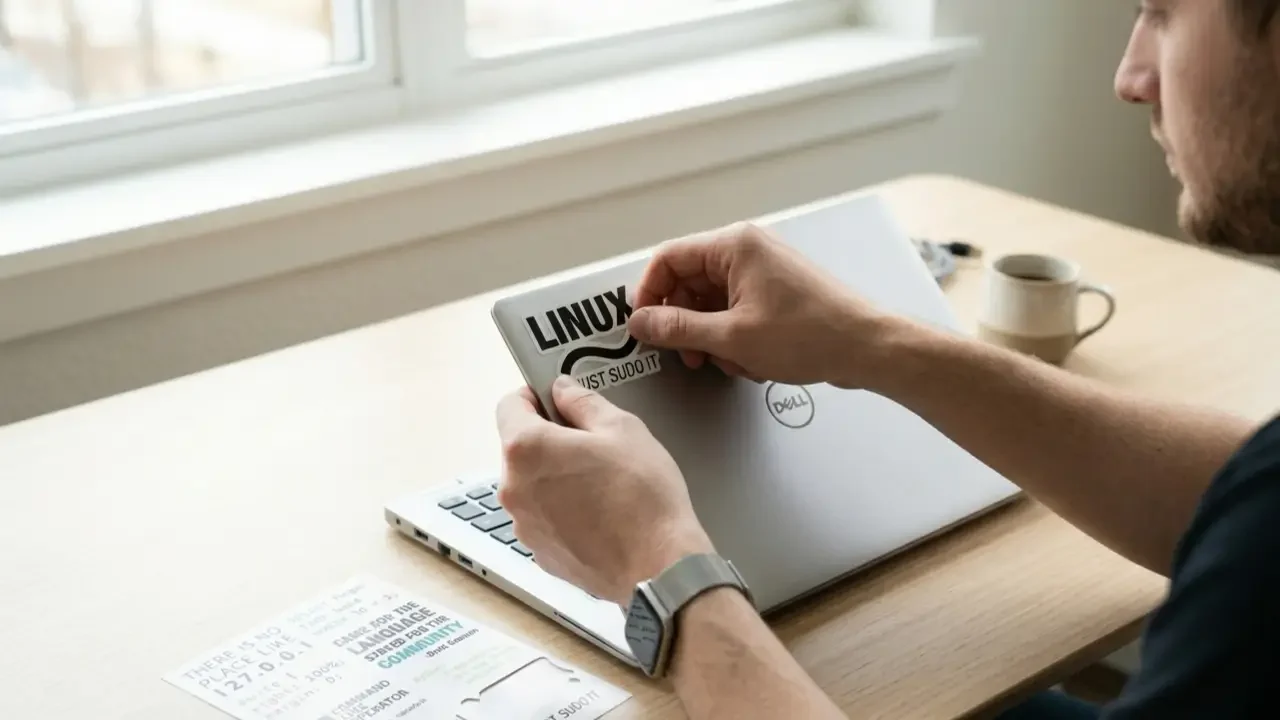
The Right Way to Do It the First Time
Application technique matters more on a Dell than on many other laptops, particularly on the soft-touch Inspiron surfaces. Here’s the exact process:
Step 1: Clean the surface thoroughly Wipe the entire lid with a microfiber cloth. Then use a second cloth lightly dampened with isopropyl alcohol (70% or higher) and wipe the areas where stickers will go. Allow 5 full minutes to dry completely. Any remaining oil or moisture will compromise adhesion.
Step 2: Plan your layout offline first Lay all your stickers on a flat white surface and arrange them as you want them to appear on the lid. Take a photo. Adjust. Take another photo. Only when you’re happy with the layout should you even think about peeling a backing.
Step 3: Start with your anchor sticker Peel the backing from your largest or most central sticker. Position it carefully, you usually get one chance before the adhesive makes contact. Hold it by the edges and confirm placement before lowering it to the surface.
Step 4: Press from center outward Once positioned, press the center first, then use a credit card or your thumb to press firmly outward toward the edges, eliminating any air pockets as you go.
Step 5: Work outward from the anchor Apply each subsequent sticker in relation to the anchor, working outward from the center of your planned layout.
Step 6: Final press-down Once all stickers are applied, go over each one with firm pressure from a credit card one more time. Pay extra attention to edges and corners, these are where peeling starts.
Step 7: Leave it alone for an hour Let the adhesive fully bond before exposing the laptop to heat, cold, or moisture. This curing time makes a real difference in long-term adhesion quality.
How to Remove Stickers From a Dell Laptop Without Damage
The Slow and Safe Method
Removal is where most Dell sticker damage happens. People get impatient, pull too fast, and either stretch the sticker into a mess of adhesive or – worse – scuff the soft-touch matte finish they didn’t realize was that delicate.
The safe method:
1. Apply heat – Hold a hairdryer on its lowest heat setting 6–8 inches from the sticker for 20–30 seconds. You’re softening the adhesive, not melting anything. The sticker should feel slightly warm to the touch.
2. Lift from a corner at a very shallow angle – Use a fingernail or the edge of a plastic card to lift one corner. Once lifted, pull the sticker back at a nearly flat angle, almost parallel to the surface, rather than pulling straight up. Straight-up pulling puts more stress on the coating.
3. Go slow – If you feel resistance, stop. Apply more heat and try again. Resistance means the adhesive is still holding. Don’t force it.
4. Clean residue immediately – Any adhesive residue left behind responds well to a small amount of isopropyl alcohol on a microfiber cloth, applied with light circular pressure. Do not scrub, especially on soft-touch surfaces. On aluminum lids, a small amount of Goo Gone also works – but test in a hidden spot first.
5. Final wipe – Clean the entire area with a dry microfiber cloth to remove any remaining alcohol or cleaner.
Laptop Stickers and Dell Warranty – What You Need to Know
Does Stickering a Dell Void the Warranty?
This is a common concern and worth addressing directly. In most cases, applying stickers to the exterior lid of a Dell laptop does not void the warranty. The warranty covers hardware defects and failures; a vinyl sticker on the outside of the lid doesn’t touch any internal components and doesn’t affect Dell’s warranty obligations.
However, there are nuances:
- If a sticker covers a service tag or asset tag, that can create complications for warranty service. Keep the service tag (usually on the bottom of the machine) clear at all times.
- If you cause surface damage during sticker removal and try to claim it as a manufacturing defect, that claim is not going to go well for you.
- Company-issued Dell laptops may have internal policies about modifications that go beyond Dell’s own warranty terms. When in doubt, check with your IT department.
The general principle: sticker the lid, avoid the service tag, be careful with removal, and you’ll have no warranty issues.
Pair Your Dell Stickers With the Full Developer Setup
Your Dell’s lid is just the beginning. The full developer aesthetic extends to everything around it, and TechGeeksApparel has all of it in one place.
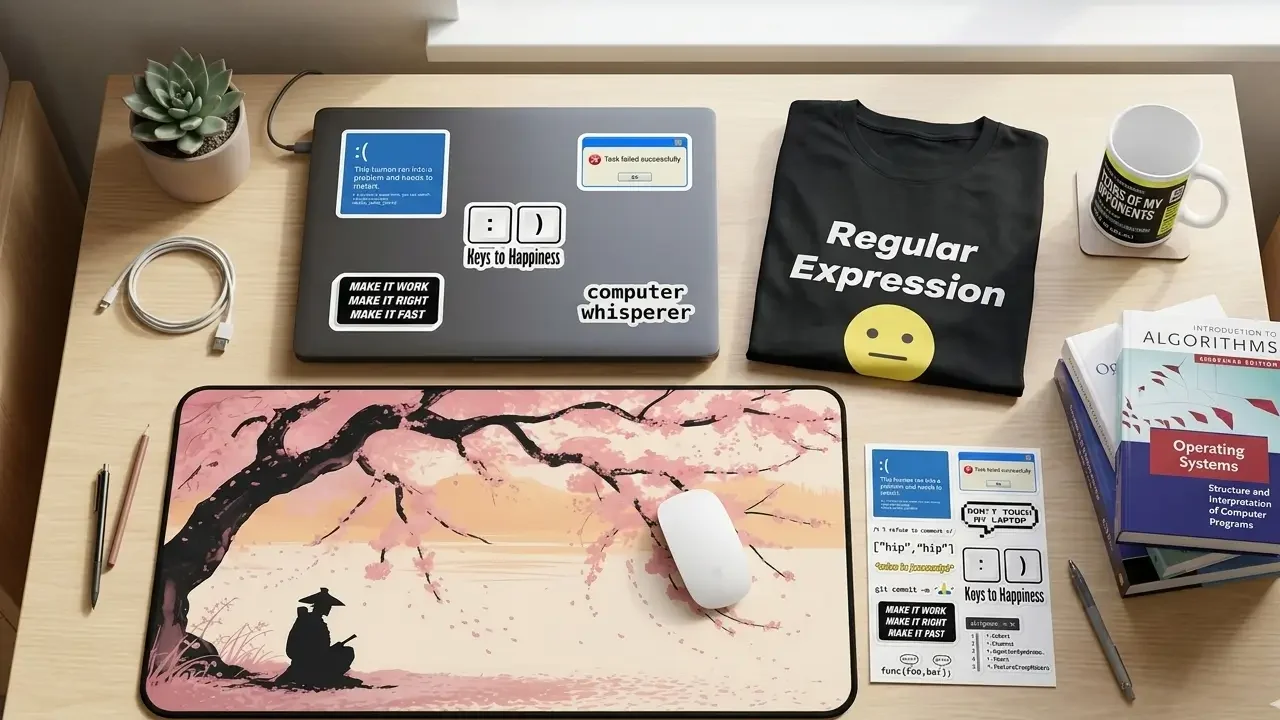
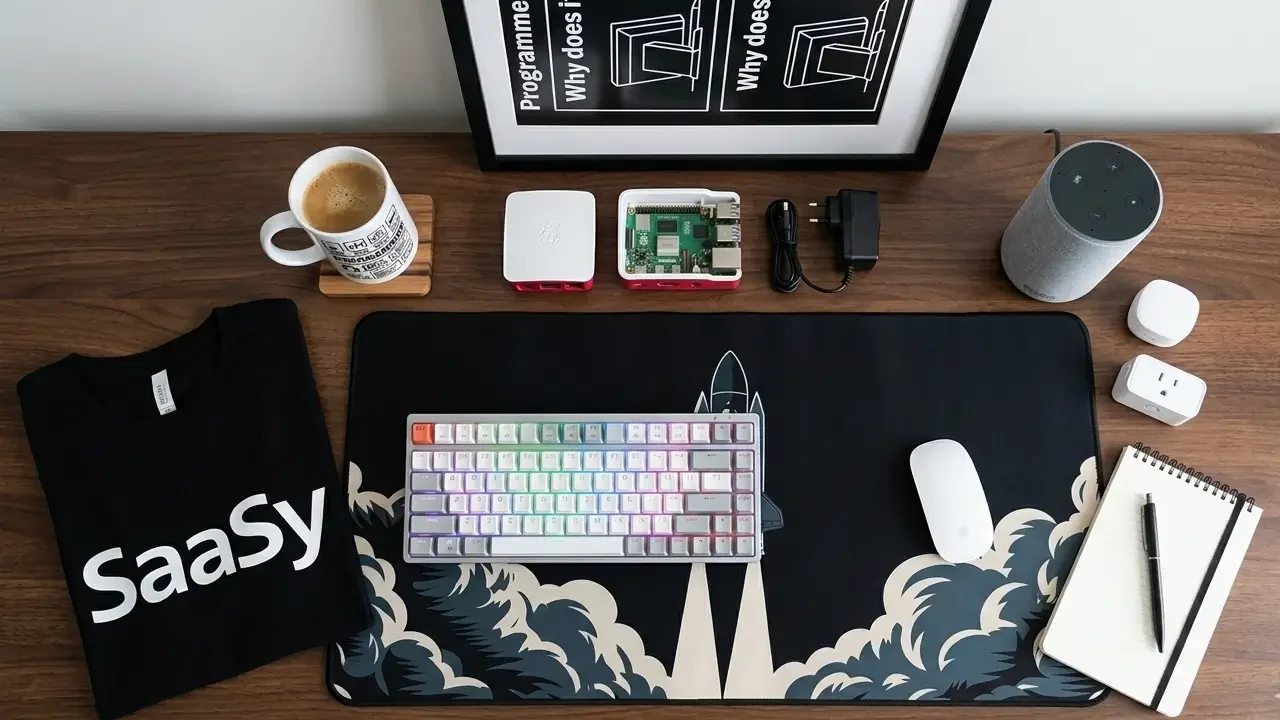
Start with the programmer sticker packs for your Dell lid, weatherproof vinyl with authentic coding humor that looks sharp on both dark and light Dell finishes. Add a developer desk mat to pull your workspace together, especially satisfying next to a Dell XPS on a clean desk setup. Grab a funny programmer mug for the coffee that powers it all and a geek wall art tech poster for the wall behind your battlestation.
And if the stickers on your lid sparked a whole aesthetic moment, a funny developer t-shirt or a programmer hoodie rounds out the full developer identity beyond just the hardware.
Conclusion – Your Dell Deserves a Personality
Dell laptops are workhorses. They’re built to last, they perform, and they handle the kind of daily punishment that developers put their machines through without complaint. The least you can do is give that faithful machine a lid that reflects who’s actually using it.
With the right stickers, quality vinyl, appropriate for your Dell’s surface type, applied with care, your Dell can look as individual and expressive as any stickered MacBook in the coffee shop. Maybe more so, because Dell developers tend to fly slightly more under the radar in sticker culture. Your stickered XPS or Inspiron becomes a conversation piece precisely because it’s less expected.
Go slow. Use vinyl. Know your surface. And check out TechGeeksApparel’s full programmer sticker collection for designs that are actually built for developer culture, not just generic tech symbols printed on whatever material was cheapest.
Your Dell’s blank lid is waiting. Time to fill it with something worth reading.
Frequently Asked Questions
Are laptop stickers safe for Dell XPS laptops?
Yes, the aluminum lid on most Dell XPS models is one of the most sticker-friendly surfaces available on any laptop. Quality vinyl stickers apply cleanly and remove without residue on XPS aluminum. The main rule: never cover the ventilation slots, and use quality vinyl rather than paper stickers. Full safety guidance is in our post on are stickers safe for laptops.
What size stickers work best for a Dell Inspiron 15?
The Dell Inspiron 15 has a lid of approximately 13.5″ × 9.5″, which gives you good sticker real estate. Stickers in the 1.5″ to 4″ range work best, large enough to be visible and impactful but small enough to allow for a layered layout. Avoid anything over 5″ as it tends to dominate the lid at the expense of visual balance.
Can stickers damage a Dell laptop’s matte finish?
Cheap paper stickers or overly aggressive adhesives can damage Dell’s soft-touch matte coating if left for extended periods or removed incorrectly. Quality vinyl stickers with clean-removal adhesive, applied and removed following the correct technique (slow removal with gentle heat), are safe for Dell matte finishes. The key is using the right sticker type and never rushing removal.
Do laptop stickers void a Dell warranty?
In most cases, no. Applying stickers to the exterior lid does not affect Dell’s hardware warranty. However, keep the service tag on the bottom of the machine clear and uncovered at all times. If you have a company-issued Dell, check your organization’s IT policy before making any modifications to the device.
Where can I find the best developer stickers for my Dell laptop?
TechGeeksApparel’s programmer sticker collection is a top pick for developer-specific vinyl stickers that work well on Dell surfaces. For a broader range of ideas and design categories, our post on laptop sticker ideas for programmers has 50+ options organized by type and aesthetic. And for the full breakdown of where to shop, see our guide on where to get laptop stickers.
![A clean flat lay of nerdy gift ideas under $50, featuring a "World's [0] Programmer" t-shirt, a "I Learned Patience the Hard Way" mug, mechanical keyboard keycaps, and tech-themed books](https://techgeeksapparel.com/wp-content/uploads/2026/06/nerdy-gift-ideas-under-50-programmer-essentials.webp)